Our trusty Brother MFC laser printer and scanner was getting long in the tooth and my wife wanted color printing. After a lot of research, she landed on the Canon MF644Cdw and placed an order.
Initially, we were both happy with the new printer. The print quality is great, the hardware is solid, and the touchpad for configuration and management is better than most.
But after a few months it became apparent that the printer’s networking is completely screwed up. The root of the problem is with Canon’s firmware: it’s not compatible with Apple’s Bonjour.
So how widespread is this issue?
Here is a six year old support thread about “offline” printer on the Mac. And if you search Google for “Canon offline Mac”, there are a ton of web pages and videos explaining how to “fix” the problem.
The problem with the fix is that it’s only temporary. Based on my personal experience, you need to re-fix things when you’re in a hurry to print a shipping label or report. Adding insult to injury, everyone that’s sharing the printer, whether it’s a family member or a work colleague, will need to reset their printer configuration, too.
Initially, this is a mild inconvenience. But after doing it hundreds of times, I renamed our printer “Canon MF” – the initials do not mean Multi-Function.
If you are reading this and still within the return window for the printer, head to your car or web browser right now. As you’ll see below, this is not a printer that will be easy to deal with on a Mac. It will be a purchase you regret.
If you can’t return the printer, keep reading and I’ll explain how things are broken and present a workaround that will prevent the constant “Offline” situation.
If you just want a permanent fix and don’t care about the details, scroll down to You Can Fix This.
Digging In
Since I could find no reports of the weird “Offline” behavior on Windows, I began by investigating the technologies that are specific to the Mac and other Unix-based systems:
- CUPS, originally known as the “Common Unix Printing System”, manages the printers, their capabilities, and the queue of print jobs.
- Bonjour lets other devices on your local network find the printer. It’s also known as Zero Configuration Networking or Multicast DNS.
CUPS felt like an unlikely culprit: everything prints great when it’s working. After checking the printer drivers against the CUPS documentation, this intuition proved correct.
But when I started looking at Bonjour, it was another story.
The following Terminal command can be used to see what printers are on your local network:
$ dns-sd -B _ipps._tcp
The command is cryptic, like all things in the Terminal, but it means “do DNS Service Discovery, browse for Internet Printing Protocol over HTTPS”.
NOTE: If using a Terminal is new to you, don’t be afraid to try the commands I’m showing: none of them will harm your Mac. You will find the app in the Applications > Utilities folder. You can copy all the text after the “$” and paste it directly into the app. Closing the window will terminate the command.
The command output will contain multiple columns, but it’s the first two columns with a timestamp and add/remove status, that show what’s wrong:
$ dns-sd -B _ipps._tcp
Browsing for _ipps._tcp
DATE: ---Sun 01 Mar 2026---
14:31:17.408  ...STARTING...
Timestamp     A/R    Instance Name
14:31:18.740  Add    Canon...(28)
14:33:21.446  Rmv    Canon...(28)
14:33:25.577  Add    Canon...(28)
14:35:34.505  Rmv    Canon...(28)
14:35:34.952  Add    Canon...(28)
14:37:33.932  Rmv    Canon...(28)
14:37:35.251  Add    Canon...(28)
14:39:37.001  Rmv    Canon...(28)
14:39:43.664  Add    Canon...(28)
14:41:58.121  Rmv    Canon...(28)
14:42:09.361  Add    Canon...(28)
14:50:13.326  Rmv    Canon...(28)
14:51:41.923  Add    Canon...(28)
14:53:39.560  Rmv    Canon...(28)
14:53:45.726  Add    Canon...(28)
Typically a printer will added when you start the command, and removed when your Mac goes to sleep.
The Canon printer removes itself every few minutes. To the rest of the network that’s using Bonjour (including everyone’s printer settings), it looks like the printer was powered off and on again. Hence the “Offline” state and the red dot in Printers & Scanners settings.
The “Offline” state is also likely to happen when you wake your Mac. The add/remove nonsense is caused by the printer and when your Mac is asleep it may miss the state change. When this happens, it can take 10-15 minutes for the red dot to turn green. When you are in this situation, you can’t add a new printer because it doesn’t exist in Bonjour. You just have to wait.
This is the root of the problem. The constant change of state eventually corrupts the cache used by Bonjour. This, in turn, breaks the CUPS configuration and your printer is either temporarily or permanently “Offline”.
A fancier version of this command speaks when the printer adds or removes itself: this lets you do things like look at the status of the printer in System Settings. After you hear “remove” you’ll see a red dot and “Offline”. An “add” turns the indicator green and shows “Idle”. This will be annoying after awhile, but it does give you great feedback about how Bonjour is messed up:
$ dns-sd -B _ipps._tcp | while IFS= read -r line; do echo "$line"; echo "$line" > /tmp/line.out; if grep -q "Rmv" /tmp/line.out; then say "Remove"; elif grep -q "Add" /tmp/line.out; then say "Add"; fi ; done
What’s in a Name?
When I started writing this report, the Bonjour name for our printer was “Canon MF642C/643C/644C (a5:d7:ad) (16) (a5:d7:a (a5:d7:ad) (28)”. A few days later it changed to “Canon MF642C/643C/644C (a5:d7:ad) (16) (a5:d7:a (a5:d7:ad) (10)”. I have no idea what caused this change, and both the names are ridiculous.
The only thing that’s important in this change are the number in parentheses at the end. Going from “Canon…(28)” to “Canon…(10)” breaks the printer configuration of every Mac on your network.
You can see this by checking the CUPS configuration:
$ lpstat -v

device for Canon_MF642C_643C_644C: dnssd://Canon…(28)._ipps._tcp.local./?uuid=GUID
There is no longer a device for dnssd://Canon…(28)._ipps._tcp. So when CUPS periodically checks the print queues and it can’t find the name, the printer is permanently offline.
When a permanent “Offline” happens, you will need to update your Mac and iOS devices:
- Mac: Remove the printer. Add a new printer. Do this on every device in your home or office.
- iOS: Turn on Airplane Mode, wait a couple of seconds, turn Airplane Mode off, and pick the new name.
So What’s Really in a Name?
So what’s the deal with the “Canon…(28)” that eventually turned to “(10)” and broke everything? These numbers are appended automatically when another device is already using the same name. If “Craig’s Mac” already exists on the local network, if you try to add it again, Bonjour will use “Craig’s Mac (1)”. Look familiar?
It turns out this Bonjour cache corruption happened on macOS about 11 years ago and it was a clusterfuck. Some devices on your local network, such as Apple TVs or HomePods, act as a backup system that can provide DNS information when other devices are asleep. When this cache gets corrupted, all hell breaks loose.
A printer that constantly adding and removing itself will eventually poison the cache and the next number in sequence will be used. And every time the corruption occurs, new stuff gets added to the end and you eventually end up with “Canon MF642C/643C/644C (a5:d7:ad) (16) (a5:d7:a (a5:d7:ad) (10)”. Lovely.
Can Canon Fix This?
I have no idea what’s going on inside the printer, and from all the support requests on their site, neither does Canon. All I can see is that printer needs to quit and restart Bonjour every few minutes.
Typically removing a DNS service instance happens when the app or process that’s handling the requests needs to quit. It should happen very infrequently. Most likely because you’ve turned the printer off.
Instead of acknowledging issues with Bonjour, the support folks talk about changing your printer configuration. And conveniently ignore the folks who note that they’ve done this “hundreds of times”.
This is not a problem that can be fixed by a new downloadable driver or by power-cycling the printer. It is a problem that will require new printer firmware from Canon. The last firmware update was 2 years ago.
It’s a huge pain in the ass and based on my personal experience it happens when you need the printer right now. Adding insult to injury, everyone that’s sharing the printer, whether it’s a family member or a work colleague, will need to reset their printer configuration.
So I set out to find a way to avoid Canon’s shitty Bonjour implementation in our printer set up.
You Can Fix This
For the most part, it’s possible to use the Canon printer without its “cycling” behavior in Bonjour. The printer will still be generating and changing gobbledygook names, but we will ignore them.
The trick is to use a static IP address. Since Bonjour’s main task is to find your printer’s IP address using a device name, we can skip that step if we already know where the printer is on the local network.
VideoGuy discovered this workaround and shared it on the Canon forums. I’ve made some simple tweaks that let your Mac know about the full capabilities of the printer (duplex pages, color support, supply levels, even a non-generic icon).
1. Find a Static IP Address
To implement this workaround, you first need to know how IP addresses are assigned on your network. Most of the IP addresses are assigned automatically using DHCP. So look around in your router settings for something like “DHCP Range”, “DHCP Start/Finish”. Once you know the range, you can pick an IP address outside of that range.
Say that you see “Start: 192.168.0.20 Stop: 192.168.0.150”. Picking a static IP of “192.168.0.180” is a safe choice because its past “192.168.0.150”.
You can double-check that this address isn’t in use with this Terminal command:
$ ping -c 5 192.168.0.180
PING 192.168.0.180 (192.168.0.180): 56 data bytes
Request timeout for icmp_seq 0
Request timeout for icmp_seq 1
Request timeout for icmp_seq 2
Request timeout for icmp_seq 3
--- 192.168.0.180 ping statistics ---
5 packets transmitted, 0 packets received, 100.0% packet loss
The “Request timeouts” and “100% packet loss” indicate that there isn’t a device at this IP address and will be safe to use on the Canon printer.
2. Change Your Printer
Now that you have a static IP address, you’ll need to update your printer’s configuration. Use the Home button below the touchscreen to get to the top-level of printer menus.
Next, drill down using the following path:
Menu > Preferences > Network > TCP/IP Settings > IPv4 Settings > IP Address Settings
By default, the printer acquires its IP addresses automatically and “Auto Acquire” is turned on. The “Manually Acquire” setting is disabled.
Turn “Auto Acquire” off, and “Manually Acquire” will get enabled. Select it and you’ll be presented with a screen where you input:
IP address: 192.168.0.180
Subnet mask: 255.255.255.0
Gateway address: 192.168.0.1
The first field is the one you want to focus on: it should be set to the static IP address that you picked above.
The last two fields are probably already set correctly because the values were retrieved during the “auto acquire” – if you have problems with them, refer to your router’s settings.
After applying the settings, restart the printer, and run a quick test of the IP address with:
$ ping -c 5 192.168.0.180
Instead of timeout errors, you should see “0.0% packet loss” and know that you have a good connection to the printer. If you see errors, go back to printer’s network preferences and double-check your work.
3. Setup Printer on the Mac
We’re entering the homestretch now!
On your Mac, go into Printers & Scanners settings, and select “Add Printer, Scanner, or Fax…”.
Instead of using first panel which shows all the Bonjour devices, pick the middle icon of the Add Printer dialog: this panel will let you add your printer using the static IP address you created.
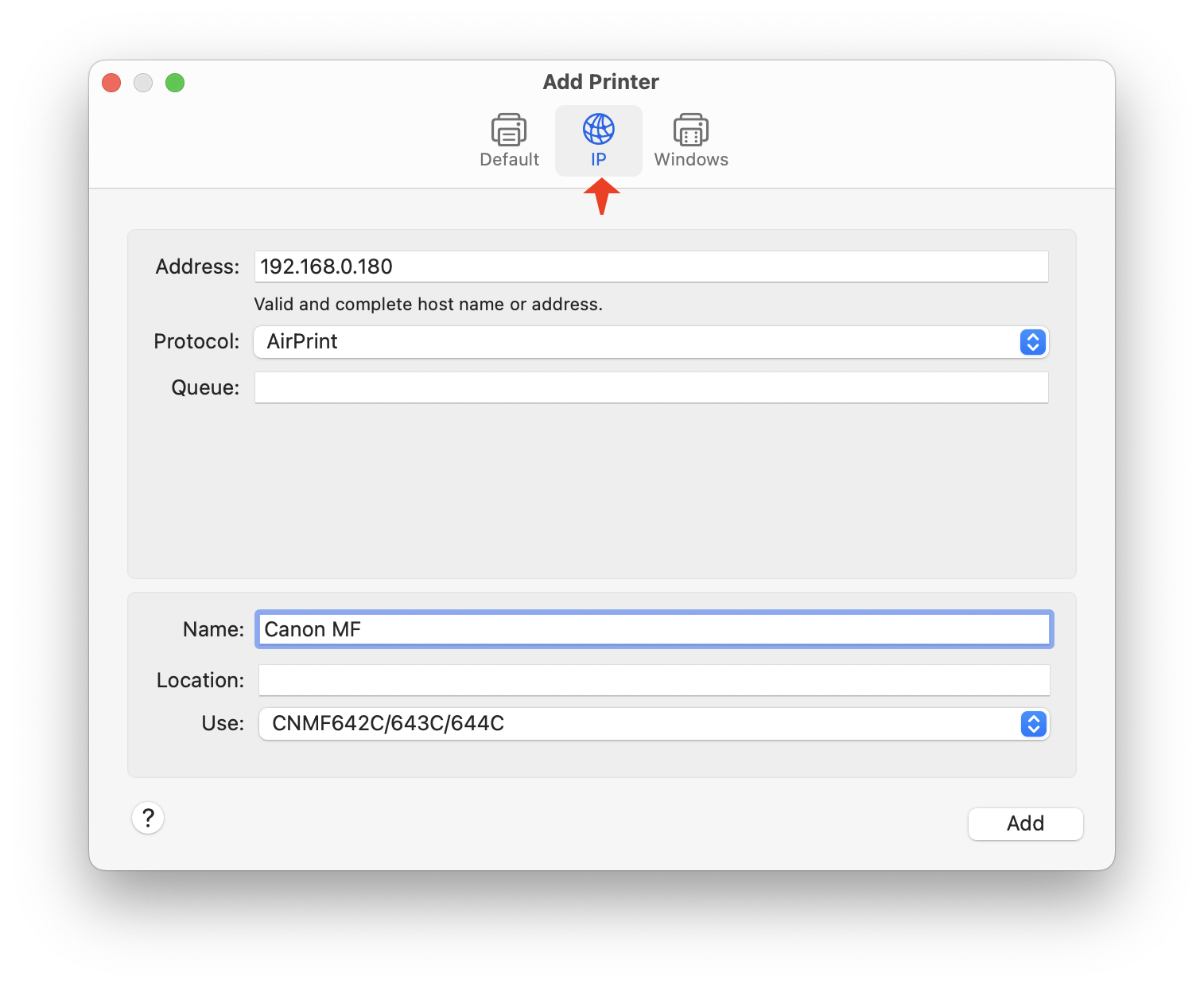
Enter your static IP address into the first field, then select the “AirPrint” protocol. Make sure that the driver is “CNMF642C/643C/644C” (or whatever is appropriate for your hardware).
Name the printer whatever you want: I chose “Canon MF” (again, not because it’s “Multi-Function”).
Click Add and you will now have a new printer that never goes “Offline”. Woo-hoo!
Note that this workaround only affects printing — when you need to use the scanning features, you will still need to setup a device that uses Bonjour. This configuration will break just as often as the one for printing, but in my experience it’s not so disruptive. I typically use the scanner when doing taxes or other financial things, and having to make a new configuration isn’t a big deal because I’m not in a hurry.
Conclusion
This issue has taken countless hours to resolve. It’s a bug that appears and disappears randomly and is completely confusing from an end user’s point-of-view.
As Mac users, we’re used to things “just working” and in this case that’s just not the case. Bonjour makes finding devices and services on your network “just work”. That is, until a Canon printer gets involved.
If anyone at Canon is reading this, please get in contact: I would love to test any firmware fixes for these Bonjour problems. I’ve been building Mac apps for over 40 years and have gotten pretty good at testing stuff.